Ask Quinn, your AI copilot
Ask Quinn how something works, find an order, or have it change a setting for you to approve.
Last updated
Quinn is the AI copilot built into Invoice Falcon. Use this guide if you want a quick answer without searching through settings or help articles. By the end, you’ll know how to open Quinn, what to ask it, and how to approve a change it suggests.
Quinn is in beta, so it’s improving quickly and can make mistakes. Double-check anything important before you rely on it.
Before you begin
Section titled “Before you begin”- Quinn is built into Invoice Falcon, so there’s nothing to install or connect. It’s included on every plan.
- The first time someone on your store opens Quinn, they accept a short disclaimer. After that, nobody on the store sees it again.
- Quinn knows which Invoice Falcon page you are on, so you can ask about “this template” or “this order” without naming it.
What Quinn can do
Section titled “What Quinn can do”| Ask Quinn to… | For example |
|---|---|
| Explain how Invoice Falcon works | “When does Invoice Falcon create an invoice?” |
| Find an order or a document | “Find the invoice for order #1042.” |
| Take you to the right page | “Where do I change the invoice email subject?” |
| Change a setting | “Turn on automatic invoice emails for paid orders.” |
| Help you finish setup | “Help me finish setting up Invoice Falcon.” |
Open Quinn
Section titled “Open Quinn”You can open Quinn in two ways:
-
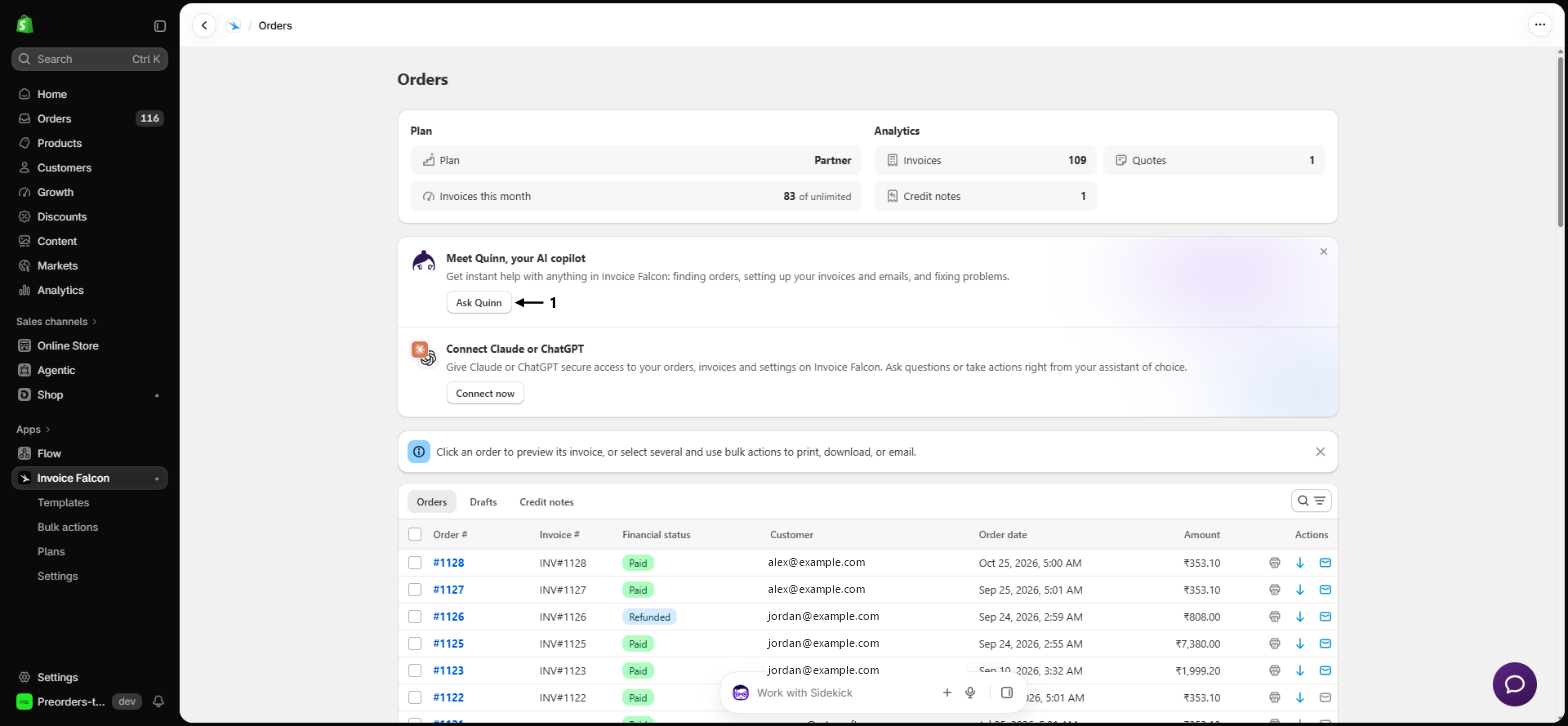
From Orders: click Invoice Falcon in the left menu of your Shopify admin, then click Orders in the app’s menu. On the Meet Quinn, your AI copilot card, click Ask Quinn. While you are still setting up, the card also shows Set up with Quinn, which starts a conversation that walks you through the steps you have left.
-
From any page: click the chat button in the bottom-right corner of the app, then click Ask Quinn in the menu that opens. If you were already chatting with Quinn, the chat button reopens that conversation. Click the back arrow at the top of the panel to see the menu again.
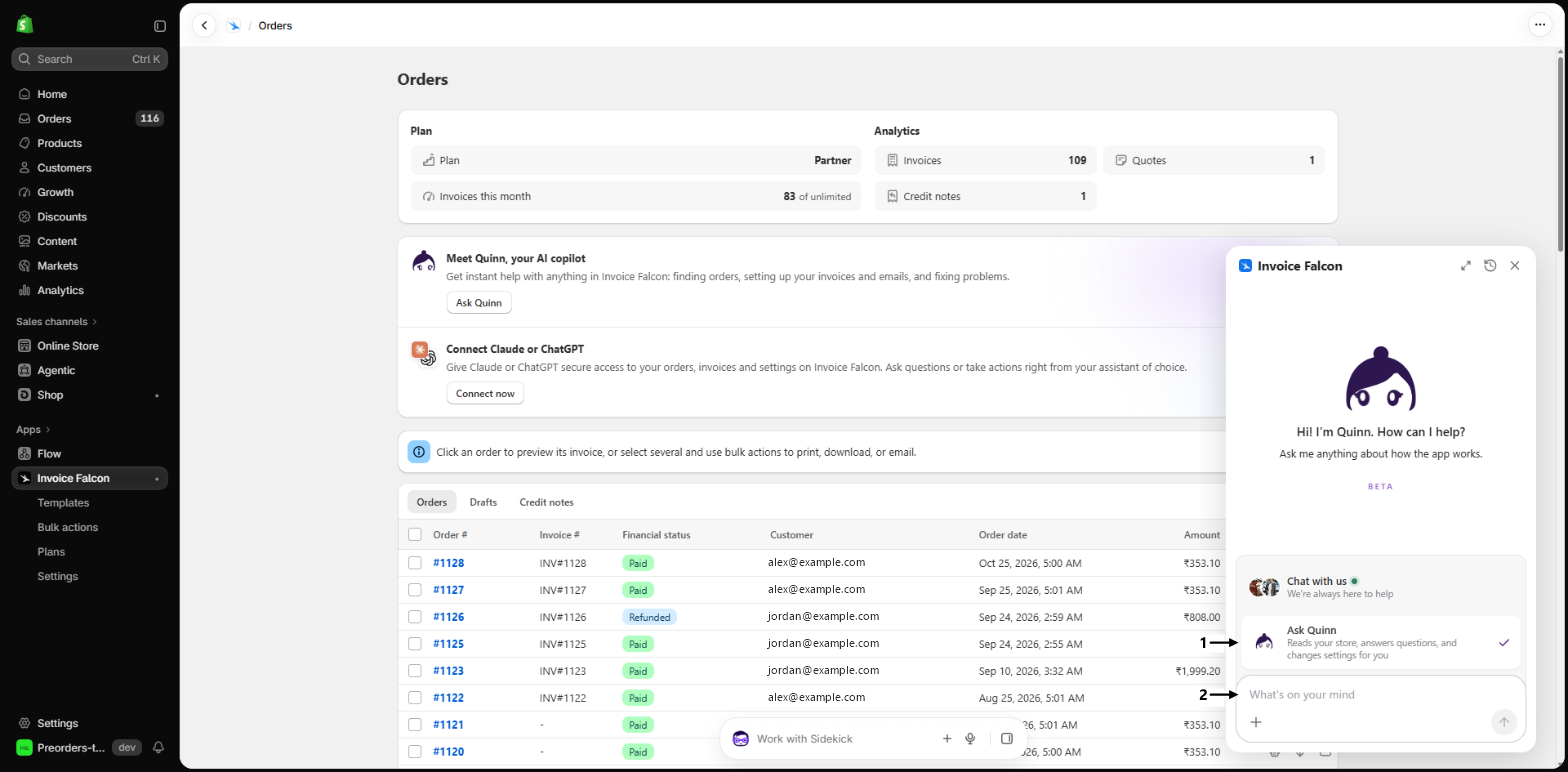
Type your question in the message box at the bottom of the panel and press Enter.
If you dismissed the Meet Quinn, your AI copilot card, use the chat button instead. It’s on every page.
Approve a change Quinn suggests
Section titled “Approve a change Quinn suggests”Quinn never changes anything on its own. When you ask it to change something, it shows you what will change first and waits for you.
- Ask for the change, for example “Change the invoice email subject to Your invoice from Acme.”
- Read the card Quinn replies with. It names the change and lists each setting with its current value and the new value.
- Click Apply on the card to make the change, or Not now to cancel it.
If the page for that setting is already open behind Quinn, for example the Settings page or a template in the visual editor, Quinn fills the change in on the page instead of saving it. Check the page, then click Save to keep the change, or Discard to throw it away.
Check your change
Section titled “Check your change”After you apply a change, open the page where that setting lives and check the new value. Ask Quinn “Take me to that setting” if you’re not sure where it is. For anything customers see, such as an email subject or a template, send yourself a test or open a real order’s invoice from Orders.
Troubleshooting
Section titled “Troubleshooting”The Meet Quinn card is missing from Orders
The card was dismissed on this browser. Click the chat button in the bottom-right corner of the app and choose Ask Quinn instead.
A change Quinn made didn't stick
The setting’s page was open when you applied the change, so Quinn filled it in without saving. Open the page again, make the change (or ask Quinn again), then click Save.
Quinn's answer looks wrong
- Check the real value on the setting’s page. Ask Quinn to take you there.
- Ask again in different words, naming the thing as it appears in the app or on the invoice.
- For anything critical, ask Quinn to put you in touch with the support team.
The chat doesn't open
Reload the page and try again. If the chat still doesn’t open, the app opens an email to the Invoice Falcon support team instead, so you can still reach a person.
Will Quinn change my settings without asking?
No. Every change shows up as a card first, and nothing changes until you click Apply. If the setting’s page is open, you also need to click Save on that page.
Do I need a paid plan to use Quinn?
No. Quinn is included on every plan. Features that need the Pro plan still need it when you ask Quinn to change them.
Does a change from Quinn affect invoices I've already sent?
It works the same as making the change yourself. A template change also shows on existing invoices the next time they are printed, downloaded or sent, unless you keep issued invoices unchanged. Invoices already emailed to customers don’t change in their inbox.
Can Quinn email an invoice to a customer?
Yes, if you ask it to. Quinn shows the send as a card first, and nothing goes to the customer until you click the button on the card.
Is Quinn the same as Claude, ChatGPT or Sidekick?
No. Quinn is built into Invoice Falcon and needs no setup. You can also connect Claude or ChatGPT, or ask Sidekick in your Shopify admin.
Related guides
Section titled “Related guides”- Find your way around the Orders page, where the Quinn card lives.
- Edit templates with AI, for template changes inside the visual editor.
- Connect Claude or ChatGPT, to use your own AI assistant.
- Manage invoices with Sidekick, to ask from anywhere in Shopify admin.
Thanks for letting us know.
Still stuck? Ask Quinn or chat with support