Manage invoices with Sidekick
Ask Sidekick in your Shopify admin to find an invoice or prepare a change for you to review and confirm.
Last updated
Sidekick is Shopify’s AI assistant, built into your Shopify admin. Use this guide if you want to find an invoice, change an email subject or update a template without opening Invoice Falcon first. By the end, you’ll know what to ask Sidekick and how to review and confirm the changes it prepares.
Before you begin
Section titled “Before you begin”- There’s nothing to install or connect. Once Invoice Falcon is installed, Sidekick can use it. It’s included on every plan.
- Sidekick is Shopify’s own feature, so Shopify decides whether your store has it.
What you can ask Sidekick
Section titled “What you can ask Sidekick”| Ask Sidekick to… | For example |
|---|---|
| Find an order’s invoice or another document | “Find the invoice for order #1042 in Invoice Falcon.” |
| Answer questions about your settings | “Which template does Invoice Falcon use for packing slips?” |
| Change an email or a setting | “Change the Invoice Falcon invoice email subject to Your invoice from Acme.” |
| Update a template | “In Invoice Falcon, hide the SKU on my default invoice template.” |
| Send, print or create a document | “Resend the invoice for order #1042.” |
Starting with “In Invoice Falcon” makes it clear you want Invoice Falcon rather than another app.
Ask Sidekick
Section titled “Ask Sidekick”-
In your Shopify admin, open Sidekick. It’s available on every admin page, including while Invoice Falcon is open.
-
Type your question or request in plain language and send it.
-
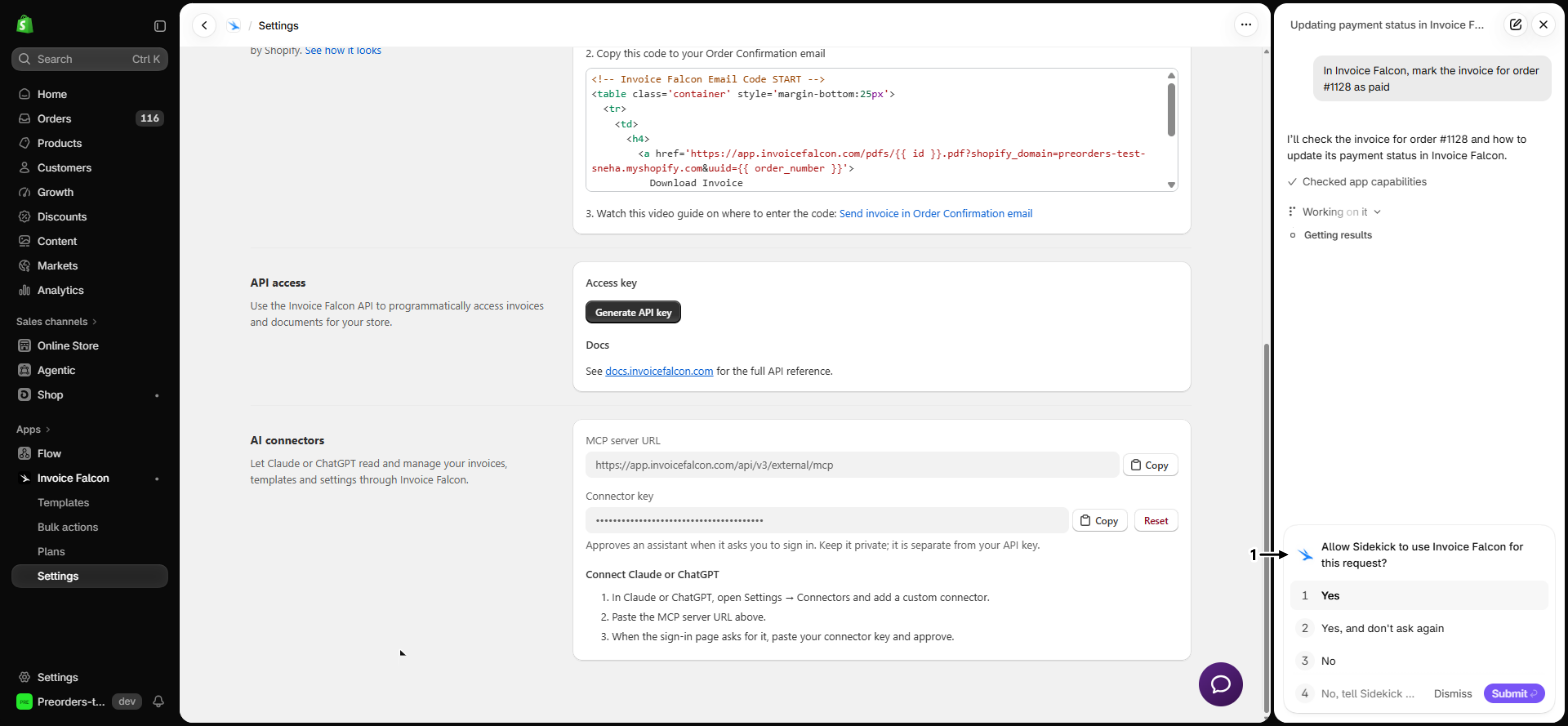
If Sidekick asks Allow Sidekick to use Invoice Falcon for this request?, click Yes. To stop it asking each time, click Yes, and don’t ask again. If you click No, Sidekick doesn’t use Invoice Falcon and nothing is changed.
Review and confirm a change
Section titled “Review and confirm a change”Sidekick never saves anything in Invoice Falcon by itself. Depending on what you ask for, it does one of two things.
For a settings, email or template change, Sidekick opens the right Invoice Falcon page with the change filled in, for example the Settings page or the template in the visual editor.
- Check that the new value is what you asked for.
- Click Save to keep the change, or Discard to throw it away.
Sidekick never fills in keys, tokens or passwords. Enter those yourself.
For an action, such as sending or printing a document, creating a credit note, marking an invoice paid, or moving an invoice to the trash, Sidekick opens a panel that shows the change.
- Read the change. Under What changes, the panel lists what will be different. For something that’s hard to reverse, the panel says This cannot be undone from here.
- Click the confirm button, for example Apply change, to go ahead. The panel shows Done when it’s finished.
- Click Cancel instead to leave everything as it was.
For a quote, Sidekick opens the quote in Invoice Falcon, where you edit, download or send it yourself.
Check your setup
Section titled “Check your setup”After you confirm a change, open the page in Invoice Falcon where that setting lives and check the new value. For an email or template change, send yourself a test or open a real order’s invoice from Orders.
Troubleshooting
Section titled “Troubleshooting”Sidekick filled in a change but it didn't save
Changes to settings, emails and templates are only filled in on the page. Click Save on that page to keep them. If you closed the page, ask Sidekick again.
The panel says Nothing was changed
The change couldn’t be made, and the message below the heading says why. Fix what it mentions, or make the change yourself in Invoice Falcon, then ask again.
The panel says No change to show
The change Sidekick prepared is no longer available. Ask Sidekick to prepare the change again.
This change expired or was already applied
A change Sidekick prepares lasts 30 minutes and can be used once. Ask Sidekick to prepare it again.
That Invoice Falcon editor is closed, so nothing was changed
You closed the page before Sidekick filled it in. Ask Sidekick again, and keep the page open until the fields change.
Sidekick tools are available once the shop moves to the new Invoice Falcon dashboard
Your store still uses the older Invoice Falcon interface. Contact us to move to the current one.
Quinn is not available for this store
Quinn has been turned off for your store, which also turns off Sidekick for Invoice Falcon. Contact us to turn it back on.
Sidekick says access to Invoice Falcon was declined
You clicked No or Dismiss when Sidekick asked to use Invoice Falcon, so nothing was checked or changed. Ask again and click Yes when Sidekick asks.
Sidekick answers about a different app
Start your request with “In Invoice Falcon” so Sidekick knows which app you mean.
Will Sidekick change anything without asking me?
No. Settings, email and template changes wait for you to click Save, and actions wait for you to confirm them in the panel.
Do I need a paid plan to use Sidekick with Invoice Falcon?
No. Sidekick works with Invoice Falcon on every plan. Features that need the Pro plan still need it.
Can Sidekick email my customers?
Only when you ask it to send or resend a document and then confirm it in the panel. It sends the same invoice email as sending it from the order page.
Does a template change from Sidekick affect invoices I've already sent?
It works the same as saving the template yourself. The change also shows on existing invoices the next time they are printed, downloaded or sent, unless you keep issued invoices unchanged.
How is Sidekick different from Quinn?
Sidekick is Shopify’s assistant and works from anywhere in your Shopify admin. Quinn is built into Invoice Falcon and knows which app page you are on. Both show you a change before anything is saved.
Related guides
Section titled “Related guides”- Ask Quinn, your AI copilot, the assistant inside Invoice Falcon.
- Connect Claude or ChatGPT, to use your own AI assistant.
- Customize your invoice emails, to make email changes yourself.
- Customize a template in the visual editor, to make template changes yourself.
Thanks for letting us know.
Still stuck? Ask Quinn or chat with support