Connect Claude or ChatGPT
Let Claude or ChatGPT read your orders and invoices and manage your templates and settings.
Last updated
Use this guide if you want to work with Invoice Falcon from your own AI assistant, for example to ask Claude to find an invoice PDF or have ChatGPT resend an invoice. By the end, your assistant will be connected and you’ll know how to disconnect it.
Before you begin
Section titled “Before you begin”- AI connectors need the Pro plan. Stores that installed before 8 July 2026 also have them on the Free plan. Otherwise, the sign-in page refuses the connection until you upgrade.
- You need an account with an AI app that supports custom connectors, such as Claude or ChatGPT. You add the connector in that app’s own settings, not in Invoice Falcon.
- A connected assistant can read your orders, invoices, quotes, credit notes and packing slips, send and print documents, and change your templates and settings. Only connect an app you trust.
Connect an AI app
Section titled “Connect an AI app”-
Open your Shopify admin and click Invoice Falcon in the left menu.
-
Click Settings in the app’s menu.
-
Click the Integrations tab and scroll to the AI connectors section. You can also click Connect now on the Connect Claude or ChatGPT card on Orders, which opens the same section.
-
Next to the MCP server URL field, click Copy.
-
In Claude or ChatGPT, open the app’s settings, go to connectors, and add a custom connector. Paste the URL you copied.
-
Your AI app opens a Connect [app] to Invoice Falcon sign-in page. Leave it open and go back to the AI connectors section in Invoice Falcon.
-
Next to the Connector key field, click Copy.
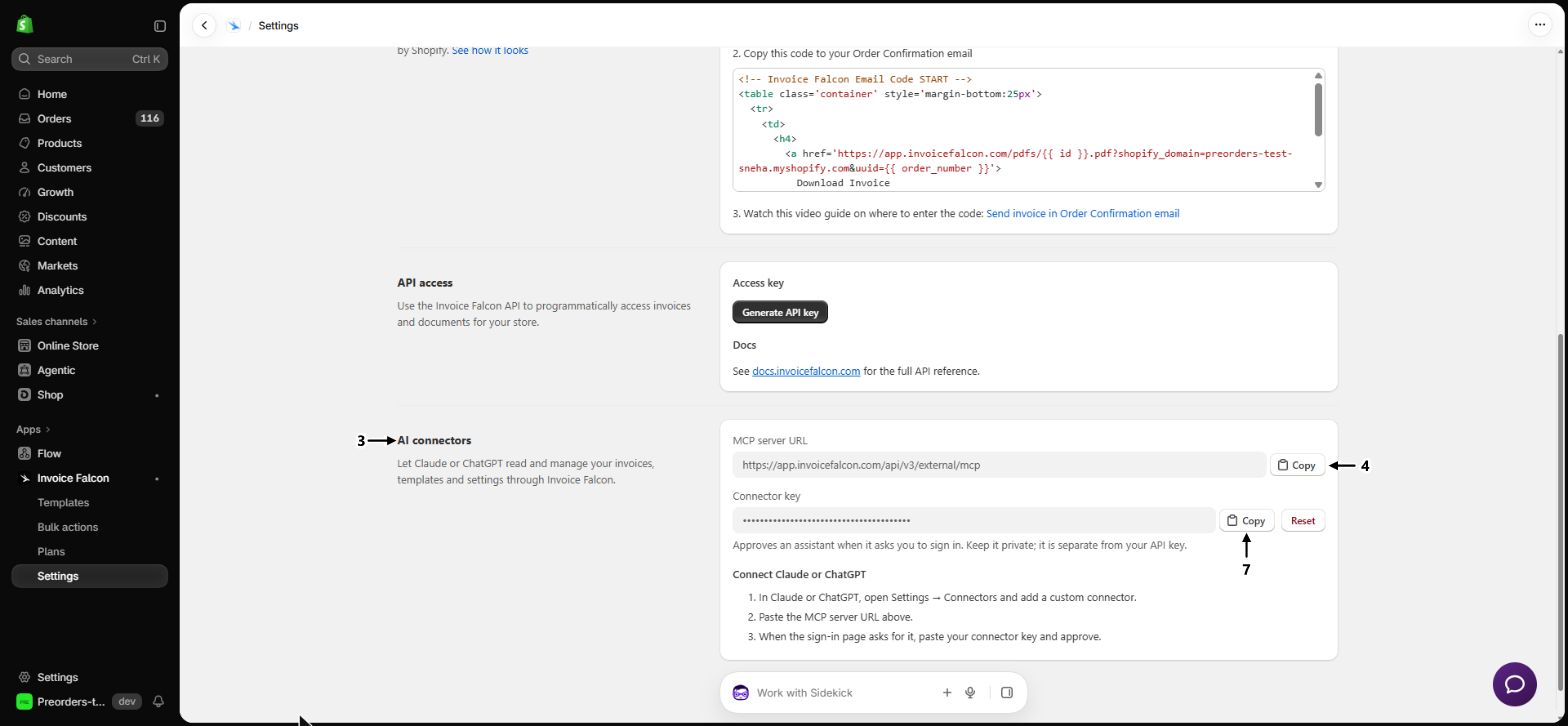
-
On the sign-in page, paste the key into the Connector key field, then click Allow. You’re sent back to your AI app.
The connector key is not your API key. Keep it private and don’t paste it into a chat message.
Check your setup
Section titled “Check your setup”Ask your AI app a simple question, such as “Find the invoice for my most recent order in Invoice Falcon”, and check the answer against Orders in the app.
Disconnect every AI app
Section titled “Disconnect every AI app”Invoice Falcon has no per-app disconnect. To cut off access:
-
On the Integrations tab, in the AI connectors section, click Reset next to the Connector key field.
-
In the Reset connector key window, click Reset.
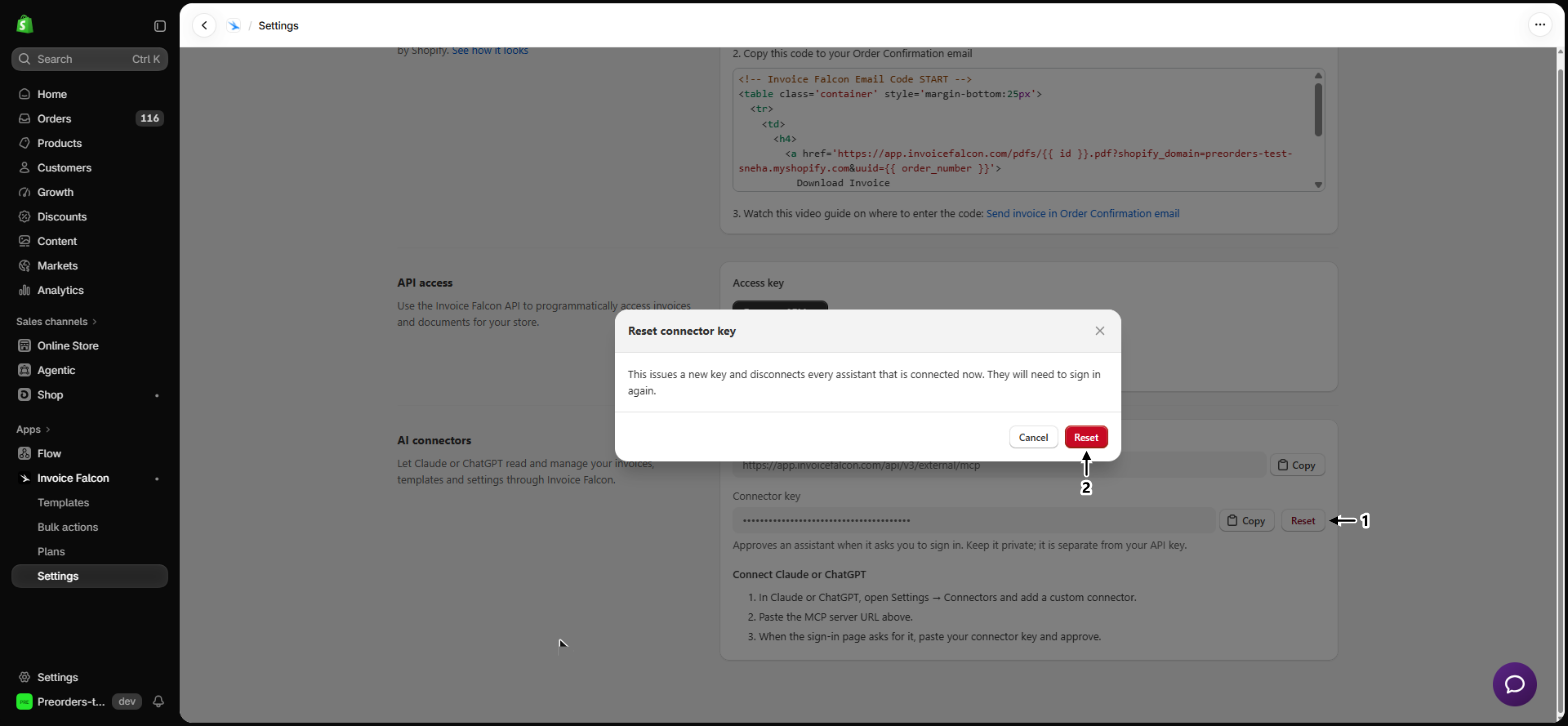
A message shows how many assistants were disconnected. Each one has to sign in again with the new key. Your API key, and anything using it, keeps working.
Troubleshooting
Section titled “Troubleshooting”That connector key is not valid
The key was reset or copied wrongly. Go back to Settings > Integrations > AI connectors, click Copy next to Connector key, and paste it again. Make sure you copied the connector key, not the API key.
AI connectors need a paid Invoice Falcon plan
Your store is on the Free plan. Upgrade to the Pro plan, then connect again from your AI app. See Invoice Falcon pricing and plans.
This connection request is invalid or has expired
The sign-in link has timed out. Start connecting again from your AI app.
The sign-in page says Invoice Falcon has not verified the app
Invoice Falcon shows this for AI apps it doesn’t recognise, because the name on the page was chosen by the app itself. Click Allow only if you added the connector yourself. Otherwise click Cancel.
My AI app stopped working with Invoice Falcon
Someone reset the connector key, which disconnects every assistant, or the store moved to the Free plan. Connect again with the current key, after upgrading if needed.
Is the connector key the same as my API key?
No. The connector key only approves an AI assistant on the sign-in page. The API key is for your own integrations. Resetting one doesn’t affect the other. See Get your API key and use the API.
Will the assistant change things without asking?
Your AI app usually asks your permission before it runs a change, and permanent deletes need a second confirmation. Read what the assistant says it will do before you agree.
Can the assistant email my customers?
Yes, if you ask it to resend an invoice or send a document. It sends the same invoice email as sending it from the order page.
What happens if I downgrade to the Free plan?
Connected assistants stop working. After upgrading again, connect them again from your AI app.
Related guides
Section titled “Related guides”- Get your API key and use the API, for your own integrations.
- Ask Quinn, your AI copilot, the assistant inside Invoice Falcon.
- Manage invoices with Sidekick, from anywhere in Shopify admin.
Thanks for letting us know.
Still stuck? Ask Quinn or chat with support